
1. Select Dashboard in the top bar Clarcity.

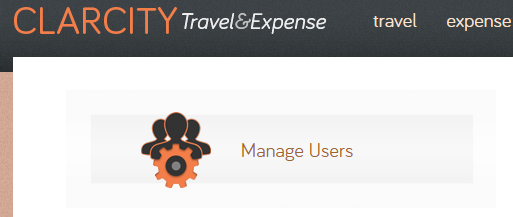
2. Select Manage Users
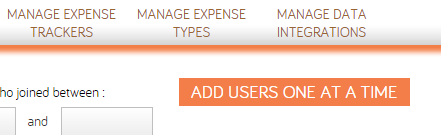
3. Select ADD USERS ONE AT A TIME
4. Enter as much information as you know. The only fields required to create a new user are the user's first name, last name, and email address.
Set Travel/Expense Approver to Yes if this user will be able to approve travel requests and expense reports.
Set Type to Admin if this user should be able to create new users, view travel authorizations and expense reports, create and edit users, create and edit policies, manage integrations with other applications, and perform other administrative tasks.
Under Reimbursement Method, select Check if the user will be reimbursed through your accounts payable process, Direct Deposit if the user will be reimbursed through your payroll system, or Clarcity Payments if you would like Clarcity to make the direct deposit payments or mail the reimbursement checks on your behalf.
Select the Travel Policy and the Approval Policy applicable to this user. Users who are not assigned to a Travel Policy will be able to book travel without restrictions. Users who are not assigned to an Approval Policy will have their expense reports automatically approved.
5. Select Continue to add frequent traveler numbers, credit cards, travel arrangers, and additional profile details. Select Done to save the new user and exit the user creation workflow. You may add frequent traveler numbers, credit cards, travel arrangers, and additional profile details at a later time. The user will receive an email with an invitation to set a password and begin using Clarcity.

6. If you select Continue, enter as many of the user's frequent flyer, frequent guest, and frequent car rental numbers as you know. Select Continue or Done.
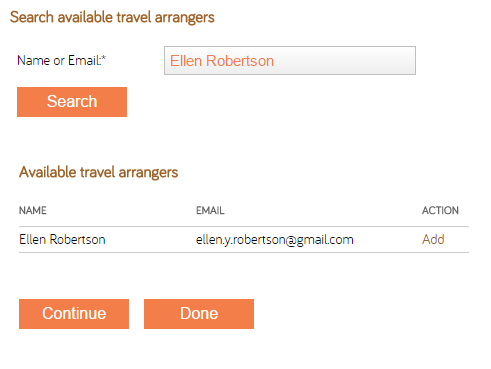
7. If you select Continue, you may add arrangers for this user. An arranger is a user who may book travel and create expense reports on behalf of another user. To add an arranger:
A. Enter the arranger's name or email address and select Search
B. Select Add to the right of the user's name
C. Select Continue or Done
8. If you select Continue, enter the details of the credit card that is used to book travel for this user. Select Done to save this card or Skip to exit the user creation workflow without saving a card.